ILX CAD AI — Complete Documentation
1Introduction
ILX CAD AI is a professional 2D CAD application for Windows that runs entirely offline. It is purpose-built for structural and civil engineering drawings, combining a full feature-equivalent CAD engine with an integrated AI assistant that can review, explain, clean, mark up, and generate code for any open drawing.
What Makes ILX CAD AI Different
- Offline-first — all drawing tools and AI inference run on your machine. No cloud upload required.
- Engineering-aware AI — the AI is fine-tuned on structural and civil drawings, code references, and drafting standards.
- DXF / DWG / SVG / PDF round-trip — open files from AutoCAD, SOLIDWORKS, Revit, or any DXF-compatible application.
- NCS-compliant layer defaults — starts with a National CAD Standard layer set for structural drawings.
Recommended First Workflow
- Open or create a drawing.
- Set up layers and snap settings.
- Draft geometry and annotations.
- Run AI → Review to check for standard compliance and common errors.
- Use AI → Explain on any element you want a plain-language description of.
- Plot or export the finished drawing.
2System Requirements
| Requirement | Minimum | Recommended |
|---|---|---|
| OS | Windows 10 (64-bit) | Windows 11 |
| CPU | 4-core | 8-core |
| RAM | 8 GB | 16 GB |
| GPU / NPU | — | DirectML-capable GPU or NPU for AI acceleration |
| Storage | 2 GB free | 4 GB (includes AI model files) |
| Display | 1920 × 1080 | 2560 × 1440 |
3Installation & Licensing
- Download
ILX-CAD-AI-Setup.exefrom the ILX Studio website. - Run the installer. AI model weights (ONNX format) are included in the installer and stored in
%ProgramFiles%\ILX Studio\CAD AI\models\. - On first launch, sign in with your ILX Studio account to activate your seat.
Your seat is managed through license.ilxstudio.com. Sign out via File → Account → Sign Out to release your seat. Updates are Ed25519-signed; model updates install separately when available.
4Getting Started
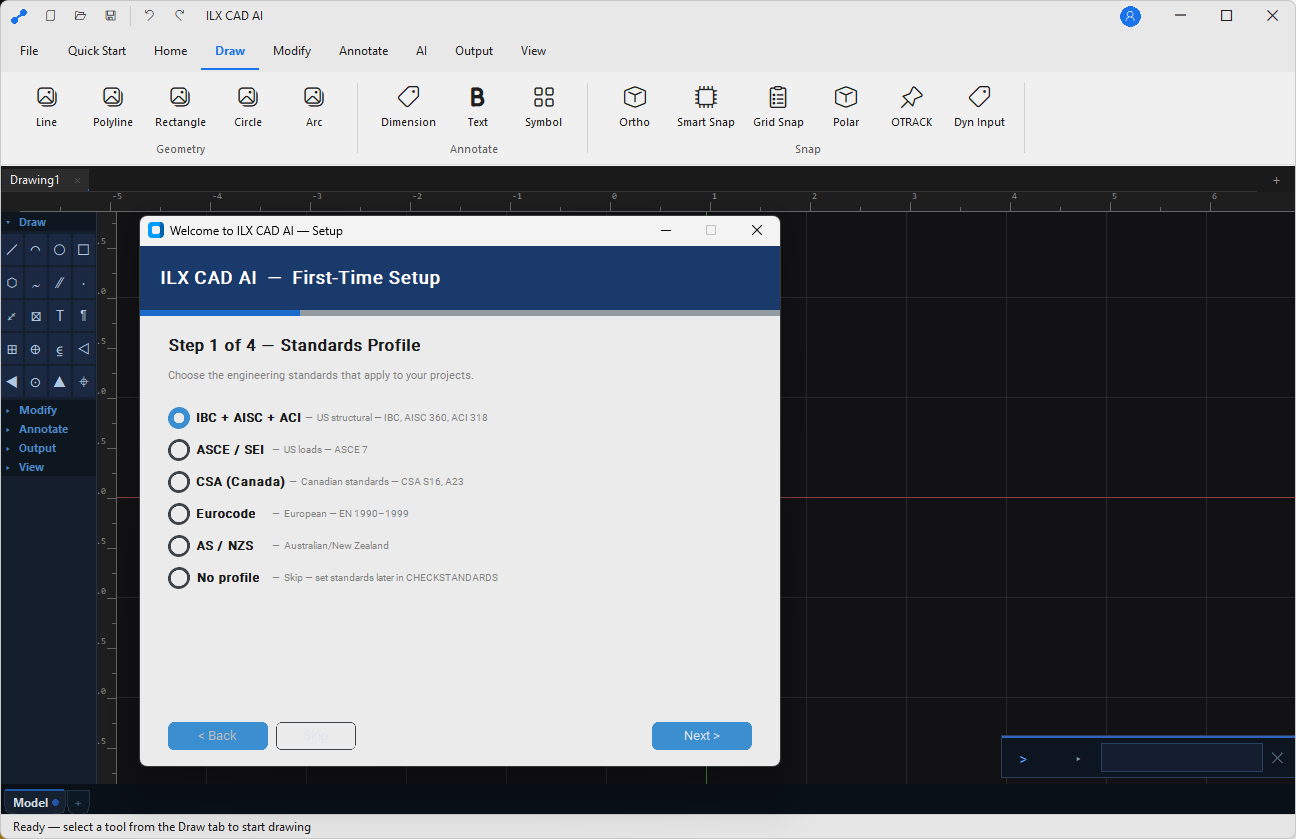
File → New Drawing (Ctrl+N) — select drawing template (Blank, ANSI B, ANSI D, A0, A1, Structural Detail, Structural Plan) and unit system (Imperial / Metric).
File → Open (Ctrl+O) — accepts .ilxd (native), .dxf, .dwg (AutoCAD 2018 and earlier). Recent files appear on the Start page.
5The Interface
Ribbon Tabs
| Tab | Contents |
|---|---|
| Home | Clipboard, select, basic draw, edit, properties |
| Draw | All 2D draw tools — LINE, PLINE, CIRCLE, ARC, ELLIPSE, SPLINE, TEXT, HATCH, DIM |
| Modify | MOVE, COPY, ROTATE, MIRROR, TRIM, EXTEND, OFFSET, ARRAY, SCALE, FILLET, CHAMFER, EXPLODE |
| Layers | Layer Manager, layer states, import layer standards |
| Blocks | Insert, create, explode, library browser, bind xrefs |
| AI | AI Review, Explain, Clean, Markup, Sandbox (see Ch. 7) |
| Output | Plot, export to DXF, DWG, SVG, PDF, PNG |
| Options | Snap, grid, units, theme, keyboard shortcuts, account |
Command Line
The command line at the bottom of the screen accepts typed commands (e.g. LINE, OFFSET, ZOOM E). All commands work with keyboard entry, matching AutoCAD aliases.
6Drawing Tools
Precision Input
All coordinate input supports: absolute (3,4), relative (@2,1), polar (@5<30), and direct distance entry (type a distance and move the mouse). Object snaps (OSNAPs): F3 toggles snaps — endpoints, midpoints, centers, intersections, tangents, quadrants, nearest.
Keyboard Shortcuts
| Command | Shortcut | Notes |
|---|---|---|
| LINE | L | Continuous line; Esc or Enter to finish |
| POLYLINE | PL | Continuous polyline with Arc option |
| CIRCLE | C | Center+radius or 3-point |
| ARC | A | 3-point, start-center-end, or start-center-angle |
| OFFSET | O | Offset line, arc, polyline, or circle by distance |
| TRIM | TR | Trim to cutting edge; Enter selects all as cutting edges |
| EXTEND | EX | Extend to boundary edge |
| MIRROR | MI | Mirror entities; optional delete original |
| ARRAY | AR | Rectangular or polar array |
| MOVE | M | Move selection by base point |
| COPY | CO | Copy; multiple copies from one base point |
| ROTATE | RO | Rotate by angle or by reference |
| ZOOM ALL | Z A | Fit drawing extents in viewport |
7AI Features
All AI features run entirely on-device. No drawing content is uploaded to external servers.

AI Review
AI → Review analyzes the entire drawing or a selected region. Results appear in the Review Panel: issues are listed by severity (⚠ Warning / ✗ Error) with a description and reference to a drafting standard (NCS, AISC Detailing Manual, or custom). Click an issue to zoom to the affected entity.

AI Explain
AI → Explain — click any entity or region to get a plain-language explanation in the Explain panel: what it is, what standard it conforms to, and how it functions structurally. Useful for checking your own drawings and for reviewing drawings from consultants.
AI Clean
AI → Clean detects and removes duplicate entities, near-zero-length segments, unclosed polylines, stray points, and overlapping text. Preview changes before applying. Runs without modifying layers or blocks outside the selection set.
AI Markup
AI → Markup adds automatic annotation callouts to selected elements — labels, dimension overrides, code references, and revision clouds — based on the drawing type and layer standards. Review and delete any markup you do not need before saving.
AI Sandbox
AI → Sandbox opens a freeform chat panel. Type natural-language questions about the current drawing or drafting standards. The AI can also generate LISP / Python code snippets for automating repetitive drafting tasks.
8Editing & Modifying
Grip Editing
Click any entity to show grips. Click a grip again to enter Move mode; right-click a grip for options (Stretch, Move, Rotate, Scale, Mirror). Hold Shift to select multiple grips.
Properties Panel
Select an entity → the right-side Properties panel shows all attributes (layer, color, linetype, lineweight, geometry data). Type new values directly to update. Multiple entities selected: shared properties are shown and editable in bulk.
Selection Modes
- Click-select: single entity.
- Left-to-right window: entities fully inside the window.
- Right-to-left crossing: entities the window touches or contains.
- Shift+click: add / remove from selection set.
ALLcommand (or Ctrl+A): select everything on unfrozen, unlocked layers.
9Blocks & Templates
Built-in Block Library
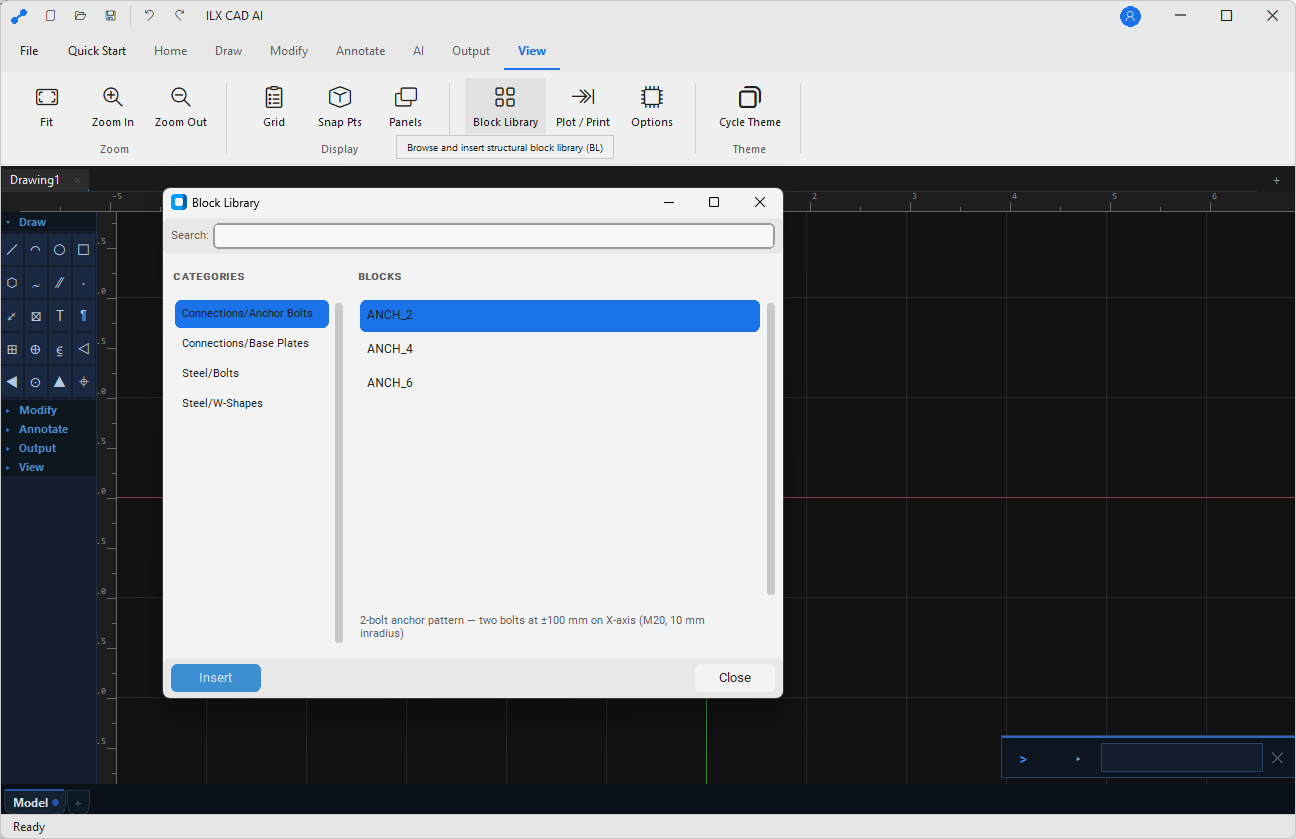
ILX CAD AI ships with a structural and civil block library covering AISC bolt and weld symbols, bearing plate details, column base plates, title blocks, north arrows, section cut symbols, and common material hatches.
Inserting Blocks
Blocks → Insert Block (I) — select from the library or from a block defined in the current drawing. Specify insertion point, scale, and rotation. Attributes (e.g. title block fields) are filled in a dialog before insertion.
Creating Blocks
Select entities → Blocks → Create Block (B). Enter a name, set the base point, and optionally check Delete source entities. The block is available in the current drawing and can be exported to a .ilxd block library file.
Drawing Templates
A template (.ilxt file) is a pre-configured drawing with page size, title block, units, layer standards, and text styles. Save any drawing as a template via File → Save as Template. File → New Drawing lists all available templates.
10Layers & Standards
ILX CAD AI’s default layer standard follows the NCS (National CAD Standard) for structural drawings. Layer names follow the S-<DISCIPLINE>-<TYPE> convention.
Layer Manager
Layers → Layer Manager (LA). Each layer has: Name, Color, Linetype, Lineweight, Visibility (on/off), Freeze, Lock, and Plot (whether this layer prints).
Layer States
Save and restore complete layer configurations with Layers → Layer States. Useful for creating plan, elevation, and detail views from a single drawing file with different layer visibility sets.
11File Formats
| Format | Extension | Read | Write | Notes |
|---|---|---|---|---|
| ILX Drawing | .ilxd | ✓ | ✓ | Native format, all features preserved |
| AutoCAD DXF | .dxf | ✓ | ✓ | R2010–R2018 interchange |
| AutoCAD DWG | .dwg | ✓ | ✓ | DWG 2018 and earlier; via Open Design Alliance |
.pdf | ✓ (underlay) | ✓ (export) | PDF underlay or export; AI features work on drawn geometry only | |
| SVG | .svg | ✗ | ✓ | Vector export for web or reports |
12Plotting & Export
Plotting to PDF
Output → Plot (Ctrl+P) — select paper size, plot area (extents / window / named viewport), scale (fit or specific), and pen style table. Output to a PDF file, ILX PDF Printer, or system printer.
Batch Plotting
Output → Batch Plot — select multiple drawing files and generate one PDF per drawing (or one combined multi-sheet PDF) with a single click. Layer states can be applied per sheet.
13Settings & Themes
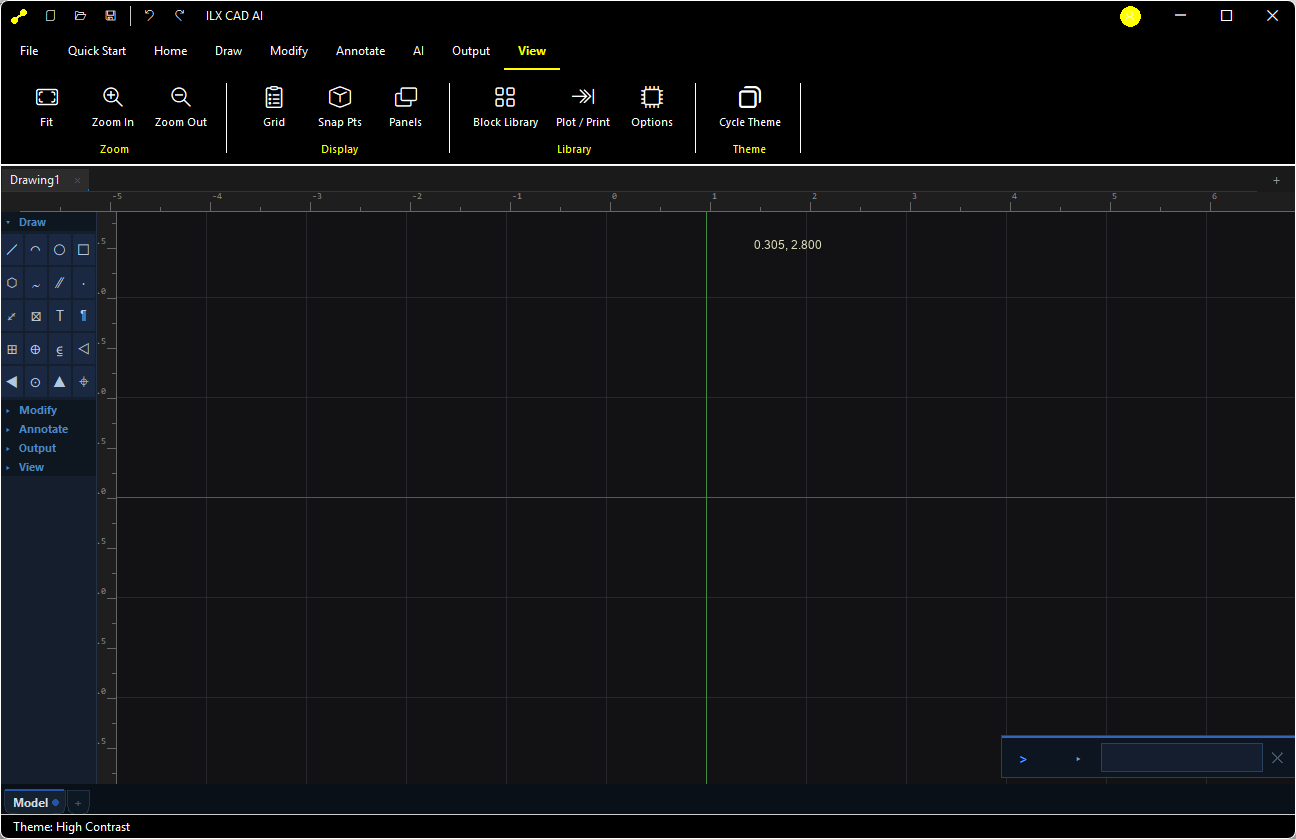
Options → Options Dialog (OP) holds all application settings organized into tabs:
| Tab | Key Settings |
|---|---|
| Display | Theme (Dark / Light), canvas color, crosshair size, tooltip delay |
| Drafting | OSNAP defaults, AutoSnap marker size, DYN (dynamic input) on/off |
| Units | Drawing units (inches, feet, mm, m), angular format, precision |
| AI | AI model verbosity, inference device (CPU / GPU / NPU auto), review severity threshold |
| Shortcuts | Edit any keyboard shortcut; export / import shortcut profile |
14Troubleshooting
DXF / DWG Opens with Missing Entities
Complex XREFs or 3D entities (solids, surfaces, meshes) are stripped on import; only 2D geometry is read. Explode xrefs to standalone entities in the source application before export, then re-import.
AI Features Are Slow
Check Options → AI → Inference Device. If it shows “CPU”, your GPU may not be detected. Update your GPU driver or set the device to “Auto” and restart. A first-run model warm-up takes ~30 seconds; subsequent calls are fast.
Drawing Opens in “Read-Only” Mode
Another ILX CAD AI process has the file open, or the file is in a network share locked by another user. Close the other instance or save a copy locally.
Hatch Patterns Not Displaying
If imported DXF hatch patterns are not recognized, they are converted to the closest built-in pattern. To restore exact patterns, copy the original .pat files to %AppData%\ILX Studio\CAD AI\patterns\.
AI Review Flags Too Many Items
Reduce sensitivity in Options → AI → Review Severity Threshold. Set to “Errors only” to see only definitive issues, not warnings.
A–HAppendices
A. Manual Conventions
| Convention | Meaning |
|---|---|
| Bold text | Button, ribbon tab, menu item, or panel name |
Monospace | Command alias, file extension, coordinate input, path |
| ✓ / ✗ / ⚠ | Pass, fail, and warning status indicators |
B. File Management
Native .ilxd files are a JSON-based drawing format. They are human-readable and diff-friendly, making them suitable for version control (git). Auto-save is on by default every 5 minutes; recovery files are in %LOCALAPPDATA%\ILX Studio\CAD AI\Recovery\.
C. AI Model Notes
The AI model included in ILX CAD AI is an ONNX-format model fine-tuned on structural drawing data. Model updates are distributed as separate installer packages and do not require a full application reinstall.
D. Accessibility
Dark and Light themes. Crosshair and grip sizes are adjustable in Options → Display. High-contrast colors can be configured per layer in the Layer Manager.
E. Support & Logs
Logs at %LOCALAPPDATA%\ILX Studio\CAD AI\Logs\. Contact support@ilxstudio.com with product version, Windows version, a sample .ilxd or .dxf file (if permitted), and steps to reproduce.
F. Glossary
| Term | Meaning |
|---|---|
| OSNAP | Object Snap — automatic snapping to geometric points (endpoints, midpoints, centers, etc.). |
| Block | A reusable, named collection of entities treated as a single object when inserted. |
| NCS | National CAD Standard — defines layer naming conventions for AEC drawings. |
| DYN | Dynamic Input — coordinate and length entry displayed at the cursor instead of the command line. |
| XREF | External Reference — a drawing file inserted into another drawing by reference (not embedded). |
G. Revision History
| Version | Date | Notes |
|---|---|---|
| 1.0 | 2026 | Initial manual draft. |
| 1.1 | 2026 | Expanded AI features chapter, drawing tools reference, troubleshooting, and glossary. |
H. CAD Drawing Checklist
- Drawing template, title block, and sheet number verified.
- Units and scale confirmed before drawing.
- Layers set per NCS or project standard; no drawing on layer 0.
- All text, dimensions, and annotations on correct layers.
- AI Review run and all errors addressed.
- Block attributes (title block fields) are complete.
- Plot to PDF reviewed for appearance before final issue.